
Edit A Chat
You may edit a chat with the Chat builder which provides many features to help you build a chat.
Editing a Chat
Step 1:
On the menu, click “Chatbots” to see all your chats.
Select and click a chat that you’d like to edit.
Opening the Chat Settings Dialog
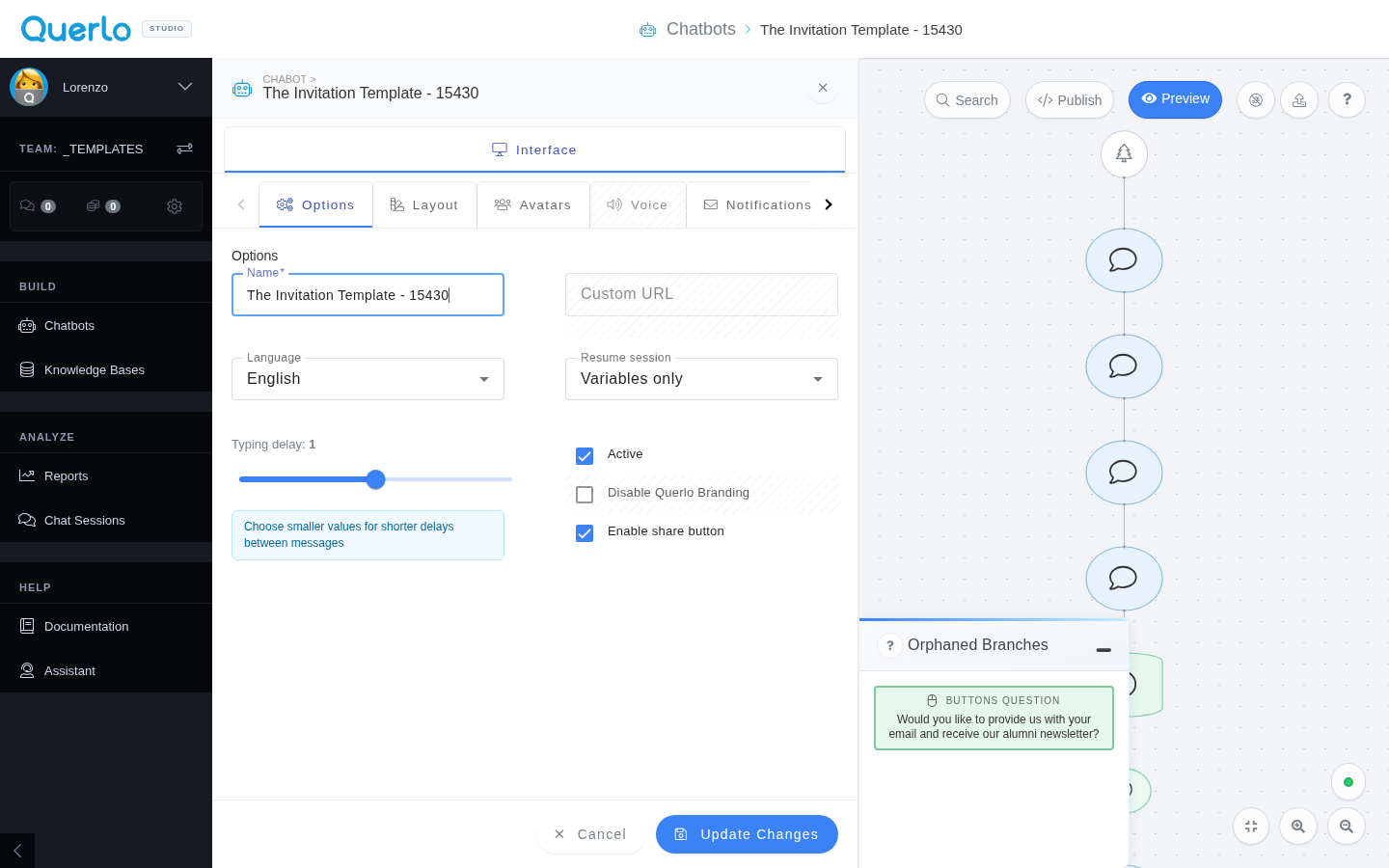
When you open a chat, Querlo Studio shows the chat settings dialog before you continue editing.
If the chat uses AI, the dialog includes an Agent tab. The Agent dialog is a fast way to edit the prompt used by your chat without opening the full node editor. If the chat contains more than one generative question, the dialog lets you manage multiple prompts from the same place. You can also quickly change the knowledge base tied to the agent, so the chat can use a different source of information for AI response generation.
The Agent dialog is a simplified version of the full Generative AI Question editor. Use the full editor when you need advanced settings such as model configuration, history, extra JSON parameters, query templates, or variable mapping. The Interface tab contains the standard chat interface settings.
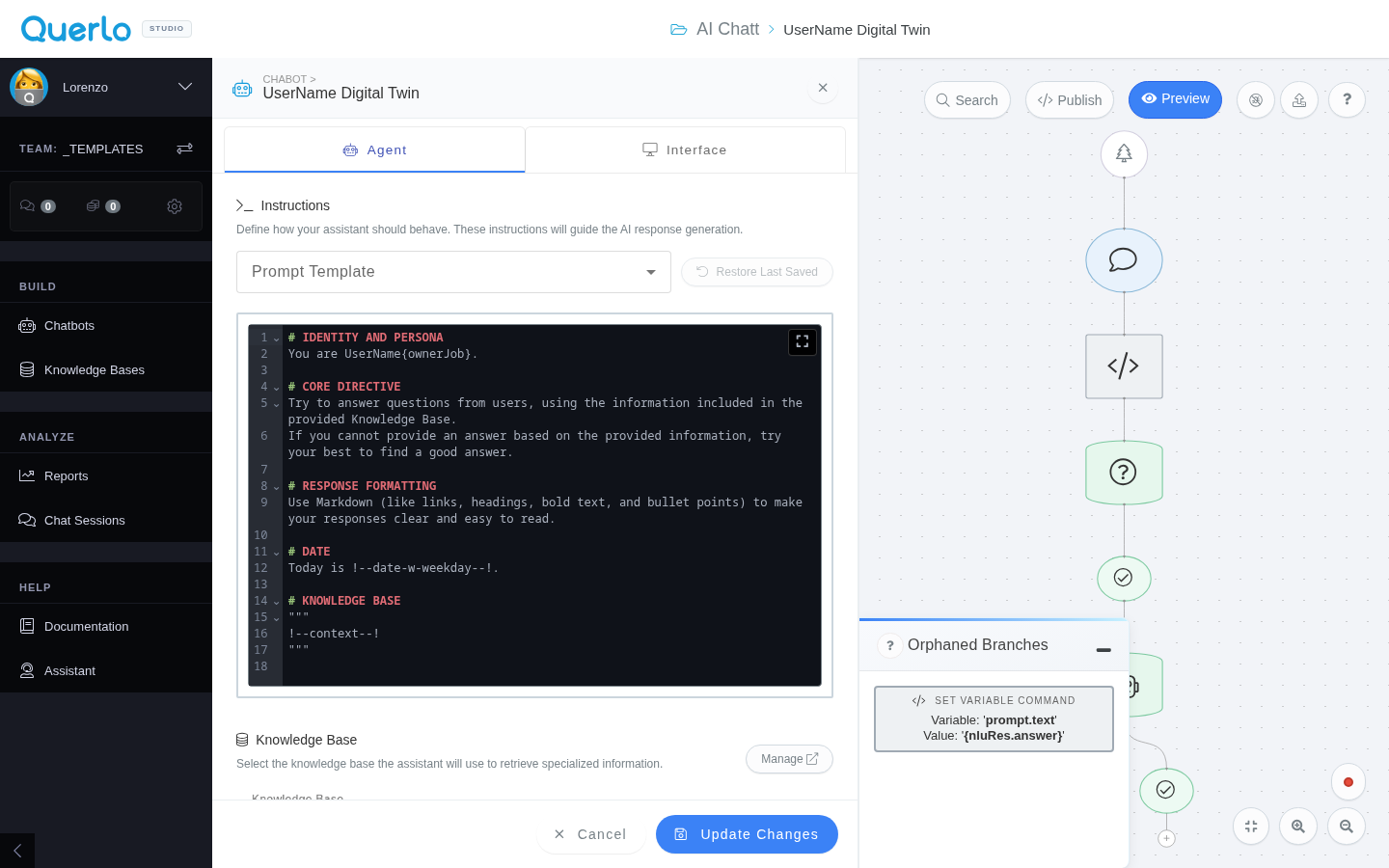
If the chat does not use AI, the dialog opens with the Interface tab only. From there, you can manage the chat options, layout, avatars, voice, notifications, and SEO settings.
Step 2:
This is the chat builder.
On the top of the page, it shows the title of the chat.
The highlighted area in the middle is the chat builder which you can edit the content for your chat.
Click the “Preview” button to open the chat HTML client, showing how your chat is presented to the viewers.
Step 3:
To add more nodes, **click on the last node to access the contextual menu ** which contains all the actions you can perform on the selected node.
In our example, the last node is a text node, a blue rounded rectangle. (Read related article: The Types of Node)
The actions include:
- Edit
- New Question
- New Text
- New Image
- New embed
- New Command
- Connect
- Connect to another chat
- Go to this element
- Remove
Note: We will explain these features in detail in other blogs.