
Knowledge Bases
The Knowledge Bases feature in Querlo Studio allows you to train your AI agents using custom data. By providing your own documents and text, you can empower your chatbot to answer questions dynamically based on the specific information you provide.
You can access this section by navigating to the left sidebar and clicking on Knowledge Bases, located under the BUILD menu.
Managing Knowledge Bases
When you open the Knowledge Bases dashboard, you will see a grid of your existing Knowledge Bases represented as container cards.
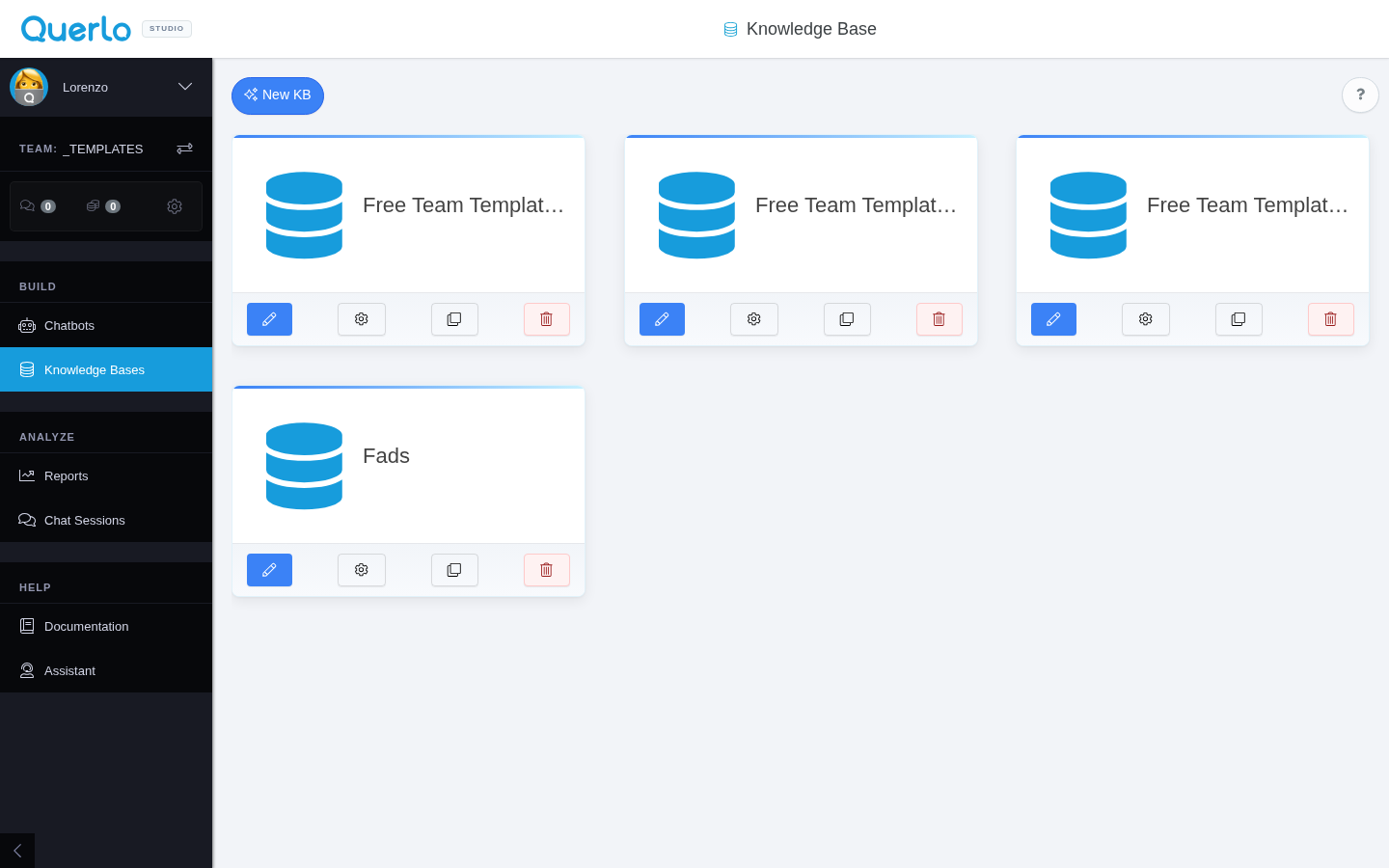
- Create a New KB: Click the blue New KB button at the top left to create an entirely new Knowledge Base.
- KB Actions: Each card displays the Knowledge Base name and provides quick action buttons at the bottom. You can edit the KB details (blue pencil icon) or delete it (red trash icon) directly from this view.
Folders and Files
Clicking into a specific Knowledge Base opens its file management interface. This interface is structured to help you organize large amounts of data:
- Folders (Left Sidebar): Organize your knowledge files into folders. You can create a new folder by clicking the + New button next to the "Folders" header.
- Files (Main Area): This area displays the files contained within your currently selected folder (e.g.
Root Kb).
Folder Configuration
When you click the + New button next to Folders, or edit an existing one, the Folder Edit modal appears. To correctly configure your folder for AI processing:
- AI Integration: Select your preferred AI integration from the dropdown menu. This defines which service provider will handle the background AI operations for this folder.
- Embedding Model: Specify the model used to convert your text into searchable vectors. At the moment, only
ada002is supported, so ensure this value is entered correctly. - Description: You can optionally provide a brief description of the folder's purpose for better organization.
Top Actions
At the top of the file view, you have several primary action buttons:
- New File: Opens the editor to manually create a new knowledge document.
- Import: Upload external files to populate your knowledge base automatically.
- Chatbots: After training your Knowledge Base, click this button to open a testing environment. Here, you can immediately test all the chatbots connected to this KB and verify that they are correctly using the updated information.
- Train: Crucial step! Whenever you add, modify, or delete files, you must click the Train button. This fully processes your latest changes. Once training is complete, firmly proceed to the Chatbots button to test the results.
You can also use the Search and Order by tools on the right side to quickly locate specific files.
The File Editor
When you click New File or click on an existing file card (like template-file-1), the File Editor modal will safely expand.
- Title: The name of your knowledge file.
- Text Editor: A code-friendly text area for your content. The editor fully supports Markdown formatting (for example, using
# titlefor headers), allowing you to cleanly structure the information the AI will read. - Tags: Below the text editor, you can assign tags to creatively categorize your file. Tags appear as small pill icons (e.g.,
test tags,another tag). You can remove an existing tag by clicking thexinside the pill. - Save / Cancel: Always remember to click the blue Save button at the bottom left to commit your changes securely.